Lesson 2 of 16 in Python for Biologists, a free beginner course with ecology examples.
In lesson 1 you saw what happens inside Python when you press Run. Now it is time to press Run yourself. This lesson takes you from an empty Windows computer to a working Python setup, your first program, and your first look inside a running script with the debugger.
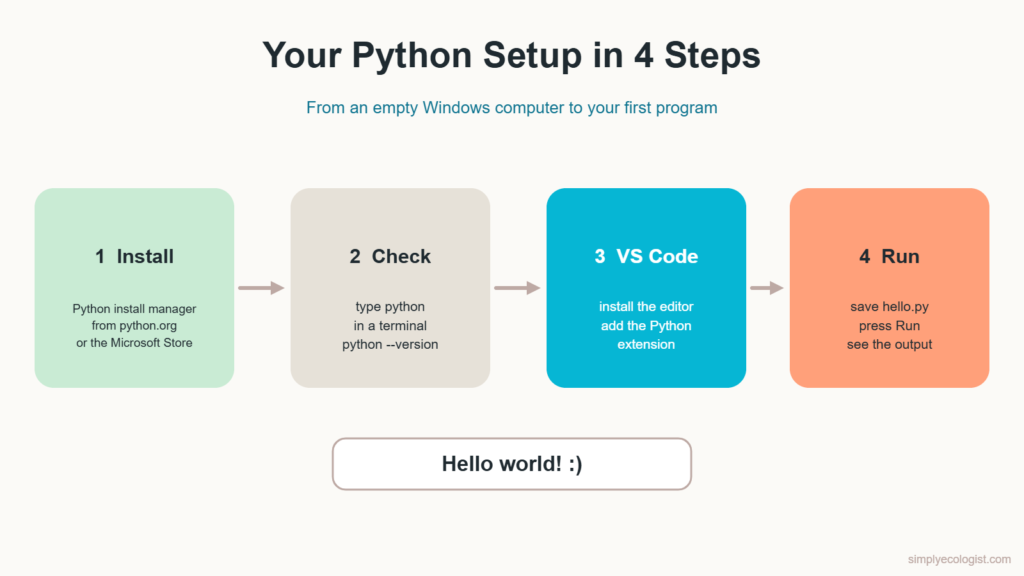
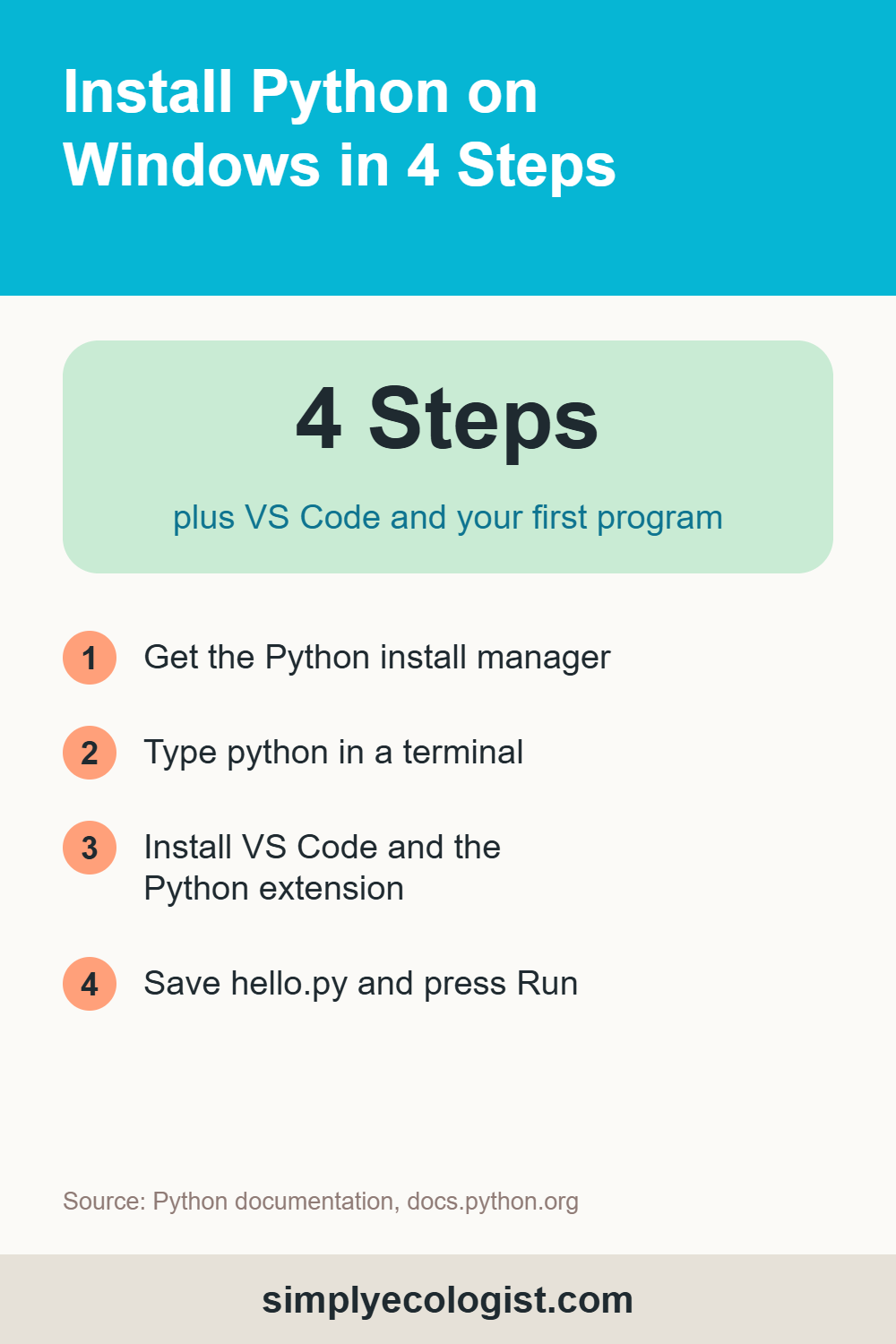
Quick answer: to install Python on Windows, download the Python install manager from python.org or the Microsoft Store, open a terminal and type python. The latest Python installs automatically. Then install Visual Studio Code and its Python extension, and you are ready to write code.
What You Will Learn in This Lesson
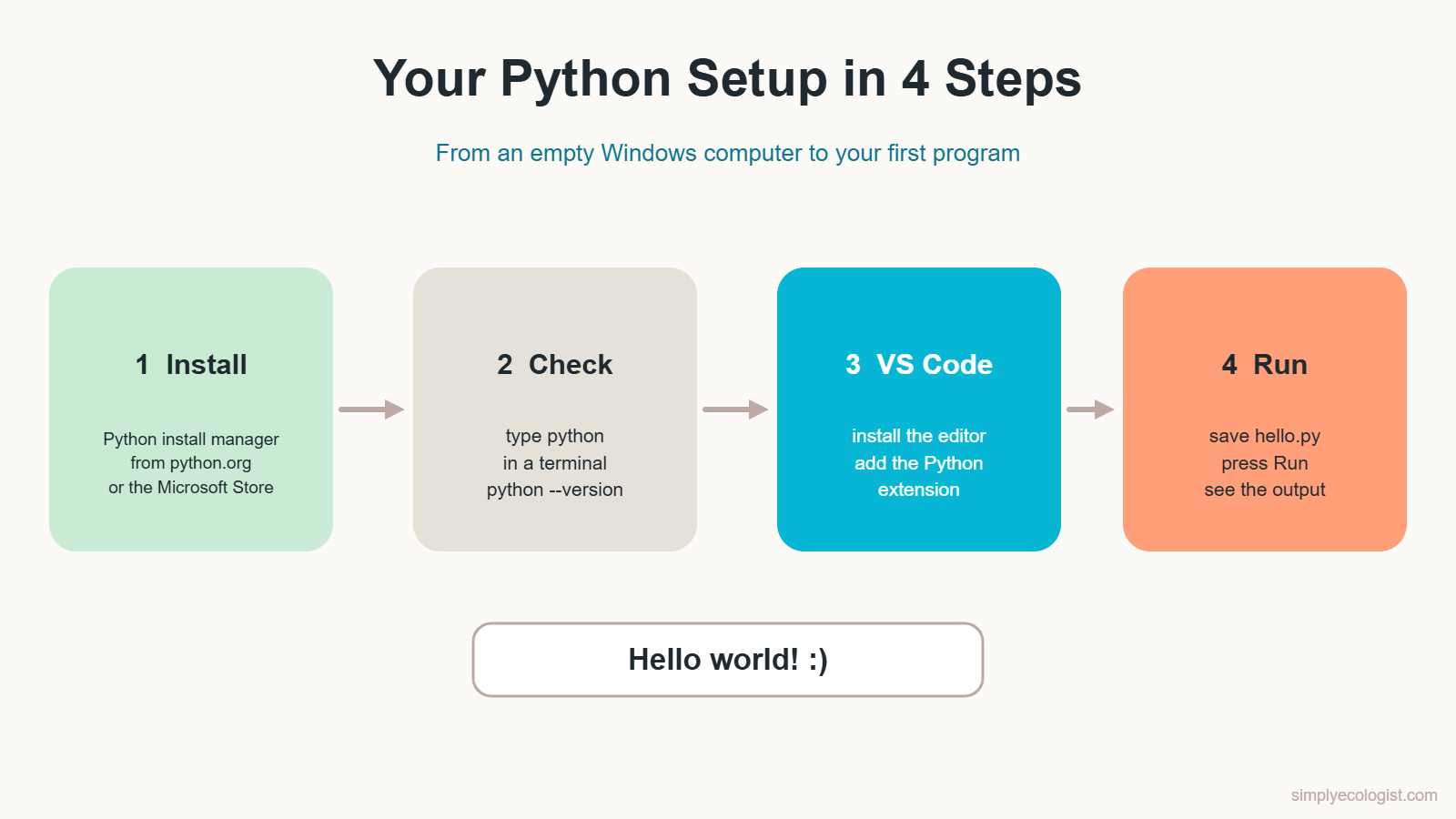
- How to install Python on Windows the current, official way
- How to check that Python works
- How to set up Visual Studio Code for Python
- How to write and run your first program
- How to use breakpoints and step through your code line by line
How Do I Install Python on Windows?
Python on Windows is now installed through a small tool called the Python install manager. It downloads Python for you, keeps it up to date, and lets you have more than one version side by side. The older one click installer still exists for now, but the official Python documentation marks it as deprecated and says it will not be made for Python 3.16 or later. Learning the new way now saves you from relearning it next year.
Step 1: Get the Python Install Manager
You have two equal options. Both give you the same tool.
- From python.org: go to python.org/downloads, download the Python install manager for Windows and run it.
- From the Microsoft Store: open the Store app, search for “Python Install Manager” and click Get.
Pick one source only. The documentation warns that the Store and python.org packages cannot be installed at the same time.
Step 2: Open a Terminal and Type python
Open the Start menu, type Terminal (or Command Prompt) and open it. Then type:
pythonThe first time you do this, the install manager notices that no Python is installed yet and downloads the latest release automatically. When it finishes, you see something like this:
Python 3.15.2 (tags/v3.15.2 ...) on win32
Type "help", "copyright", "credits" or "license" for more information.
>>>
Those three arrows, >>>, are the Python prompt. Python is waiting for an instruction. Type exit() and press Enter to leave it.
Step 3: Say Yes to Adding Python to PATH
During the first install you will probably be asked whether to add a folder to your PATH. PATH is simply the list of places Windows searches when you type a command. Saying yes means python works from any folder. It is optional, but for a beginner it removes a common source of confusion.
Step 4: Check Your Version
Close the terminal, open a new one and type:
python --versionIf you see a version number, such as Python 3.15.2, Python is installed and working. Your exact number may be newer, which is fine.
Useful Install Manager Commands
| Command | What it does |
|---|---|
py list | Shows every Python version installed on your computer |
py install 3.15 | Installs a specific version |
py uninstall 3.15 | Removes that version |
python --version | Shows the version the python command uses |
On a Mac or Linux? On macOS, download the installer from python.org and run it. Most Linux systems already include Python, which you start with python3. Everything after this point in the course works the same on all three.
How Do I Set Up VS Code for Python?
You could write Python in Notepad, but you would be working with one hand tied behind your back. A code editor colours your code, spots typos, and runs your script with one click. This course uses Visual Studio Code, usually called VS Code. It is free and runs on Windows, macOS and Linux.
- Install VS Code. Download it from code.visualstudio.com and run the installer with the default options.
- Install the Python extension. Open VS Code, click the Extensions icon on the left (four small squares), search for Python and install the one published by Microsoft. It also brings the Python Debugger you will use later in this lesson.
- Make a project folder. Create a folder such as
python_for_biologistsin your Documents, then in VS Code choose File, Open Folder and select it. Keeping each project in its own folder is a habit worth starting today. - Select the Python interpreter. Press Ctrl + Shift + P, type Python: Select Interpreter and choose the Python version you just installed. The interpreter is the program from lesson 1 that actually runs your code, so VS Code needs to know which one to use.
How Do I Write My First Python Program?
Every programmer’s first program prints a short greeting on the screen. It sounds small. It proves that everything you just installed works together.
- In VS Code, choose File, New File, and save it in your project folder as
hello.py. The.pyending tells VS Code and Python that this is Python code. - Type this one line:
print("Hello world! :)")- Click the small Run triangle in the top right corner of VS Code. A terminal panel opens at the bottom and shows:
Hello world! :)print() is a built in function that sends whatever you put between the brackets to the screen. The quotation marks tell Python that Hello world! :) is text, not an instruction. You will meet both ideas again and again in this course.
You can also run the same file from any terminal opened in your project folder:
python hello.pyHow Do I Debug Python in VS Code?
A program that runs is good. A program you can watch while it runs is better. The debugger lets you pause your script at any line and see what every variable holds at that moment, a bit like stopping a camera trap video frame by frame to see exactly when the animal entered the shot.
Create a new file called bird_count.py with this code:
robins = 4
sparrows = 9
blackbirds = 2
total = robins + sparrows + blackbirds
print(total)
Set a Breakpoint
A breakpoint is a marker that tells the debugger where to pause. Move your mouse to the left of the line number of line 2 and click. A red dot appears. That is your breakpoint.
Run in Debug Mode
Press F5, or open the Run and Debug panel on the left and click Run and Debug. If VS Code asks for a configuration, choose Python Debugger: Debug Python File. The program starts and then stops on line 2, the line with your breakpoint. That line is highlighted but has not run yet.
Look at the Variables panel on the left. You will see robins = 4. sparrows does not exist yet, because Python has not reached that line.
Step Over, Line by Line
Now press F10, which is Step Over. Python runs line 2 and stops at line 3. sparrows = 9 appears in the Variables panel. Press F10 again and again, and you will watch each variable appear and finally see total = 15 before it is printed.
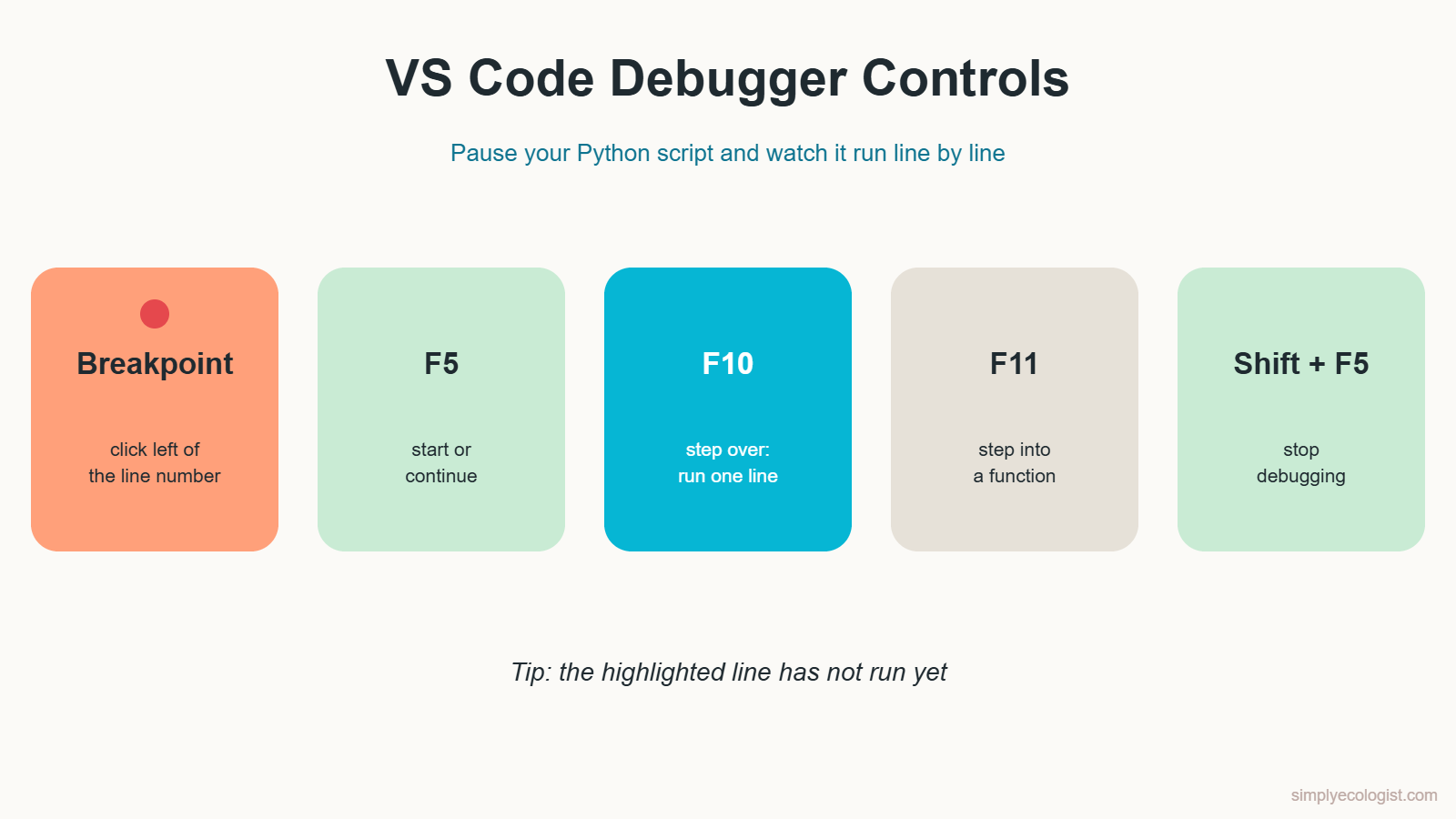
| Control | Shortcut | What it does |
|---|---|---|
| Breakpoint | Click left of the line number | Marks where the program should pause |
| Start or Continue | F5 | Starts debugging, or runs on to the next breakpoint |
| Step Over | F10 | Runs the current line and stops at the next one |
| Step Into | F11 | Goes inside a function you wrote, line by line |
| Stop | Shift + F5 | Ends the debugging session |
Right now this may feel like a lot of ceremony for five lines. Later, when a script that processes hundreds of records gives you a number that looks wrong, the debugger is how you find the exact line where it went wrong. Learning it on day one turns a future afternoon of frustration into a few clicks.
Practice Tasks
Task 1: Hello, Wild World
Write your own version of the classic first program: print the message Hello, wild world! :) on the screen. Then change it to greet the habitat you work in, for example Hello, wetland!
Show the solution
# print() sends the text between the brackets to the screen
print("Hello, wild world! :)")
print("Hello, wetland!")
Task 2: Your Field Info Card
Create a new file called field_info.py. Copy the code below exactly, even if you do not understand every line yet. You will learn input() properly in lesson 6. For now, the goal is to save, run and interact with a real program.
# A program that greets an observer before a survey
# Ask for the observer's name
observer = input("Enter your name: ")
# Ask for the survey site
site = input("Enter your survey site: ")
# Print a welcome message
print(f"Welcome, {observer}! Your survey at {site} is ready to start.")
Save the file and run it. Type your name, press Enter, type a site name and press Enter again. You should see something like this:
Enter your name: Eli
Enter your survey site: Kopački Rit
Welcome, Eli! Your survey at Kopački Rit is ready to start.
Task 3: Change the Program
Two small experiments:
- Add a third question that asks for the date of the survey, and include it in the welcome message.
- Delete the three lines that start with
#and run the program again. Does anything change?
Show the solution
observer = input("Enter your name: ")
site = input("Enter your survey site: ")
survey_date = input("Enter the survey date: ")
print(f"Welcome, {observer}! Your survey at {site} on {survey_date} is ready to start.")
Deleting the # lines changes nothing in how the program runs. Lines that start with # are comments: notes for humans that Python ignores completely. You will learn how to write good comments in lesson 3.
Task 4: Find the Bug With the Debugger
This script should total three plot counts, but it prints the wrong number. Set a breakpoint on the first line, step through with F10 and watch the Variables panel to find the mistake.
plot_1 = 12
plot_2 = 7
plot_3 = 5
total = plot_1 + plot_2 + plot_2
print(total)
Show the solution
The program prints 26 instead of 24. When you step to line 4 and look at the values, you can see that plot_2 was added twice and plot_3 never. The fixed line is:
total = plot_1 + plot_2 + plot_3Quiz: Check Your Setup Knowledge
1. What is the current recommended way to install Python on Windows?
a) The Python install manager b) Copying Python from a USB stick c) Installing VS Code only
Show answer
a) The Python install manager, from python.org or the Microsoft Store. The older full installer is deprecated.
2. Which command shows which Python version you have?
a) python --version b) print(version) c) py uninstall
Show answer
a) python --version, typed in a terminal.
3. What does adding Python to PATH do?
a) Makes Python run faster b) Lets you type python from any folder c) Installs VS Code
Show answer
b) PATH is the list of places Windows searches for commands.
4. What do the symbols >>> in the terminal mean?
a) An error b) Python is waiting for an instruction c) The program has finished
Show answer
b) It is the Python prompt. Type exit() to leave it.
5. Which file name is a Python script?
a) hello.txt b) hello.py c) hello.exe
Show answer
b) hello.py. The .py ending marks Python source code.
6. What happens to lines that start with #?
a) Python runs them first b) Python ignores them c) They cause an error
Show answer
b) Python ignores them. They are comments for people reading the code.
7. The debugger stops at a line with a breakpoint. Has that line run yet?
a) Yes b) No c) Only half of it
Show answer
b) No. The highlighted line runs when you step over it or continue.
8. Which key runs the current line and stops at the next one?
a) F5 b) F10 c) F11
Show answer
b) F10, Step Over. F5 continues to the next breakpoint, and F11 steps into a function.
Key Takeaways
- Install Python on Windows with the Python install manager, then type
pythonin a terminal. - Check your installation with
python --version. - VS Code plus the Python extension gives you a free, beginner friendly place to write and run code.
print()shows text on the screen, and lines starting with#are comments Python ignores.- Breakpoints and Step Over let you watch your program run one line at a time.
Once you can install tools and run scripts, a whole world of open biology data opens up. My machine learning project on seabird diets shows where these first small steps can lead.
Previous lesson: Is Python Compiled or Interpreted?
Next lesson: PEP 8 Python Style Guide for Beginners.
Back to the course: Python for Biologists, all 16 lessons

Erzsebet Frey (Eli Frey) is an ecologist and online entrepreneur with a Master of Science in Ecology from the University of Belgrade. Originally from Serbia, she has lived in Sri Lanka since 2017. Eli has worked internationally in countries like Oman, Brazil, Germany, and Sri Lanka. In 2018, she expanded into SEO and blogging, completing courses from UC Davis and Edinburgh. Eli has founded multiple websites focused on biology, ecology, environmental science, sustainable and simple living, and outdoor activities. She enjoys creating nature and simple living videos on YouTube and participates in speleology, diving, and hiking.
From the shop
Gifts for people who love the wild
Wildlife themed t-shirts, notebooks, tote bags, bandanas and guides, designed by an ecologist.
Visit the shop